Introducing workflow automation in your business means going through seven clear steps – from a process inventory through choosing a tool and building your first workflow to the question of when classic workflows end and AI agents take over. It’s not rocket science, but it’s not a weekend project either. What’s usually missing isn’t motivation but an order that actually works. That’s exactly what you get here – step by step, without tool bingo and without AI promises you can’t keep in the end.
If you’re still wondering what workflow automation actually is and which basic terms are behind it – trigger, action, API – you’ll find that in our basics article. Here we get straight into practice: how do you introduce it in your own business, from zero to up and running?
Key takeaways
- The tool doesn’t come first – the process does: only what repeats, follows fixed rules and has enough volume is worth automating – and a simple matrix beats any gut feeling.
- Do the maths before you build: time saved plus avoided error costs must clearly exceed the setup effort, otherwise it simply isn’t worth it.
- Clean up the process before you automate it: hidden exceptions and approval loops that nobody can justify any more will otherwise make every workflow unnecessarily complicated.
- Every workflow needs four building blocks – trigger, action, filter and error handling. Without error handling, you often only notice an outage when a customer complains.
- Classic workflows end where decisions are no longer rule-based – only at that boundary does an AI agent become a sensible next step, not before.
Which processes should you automate first?
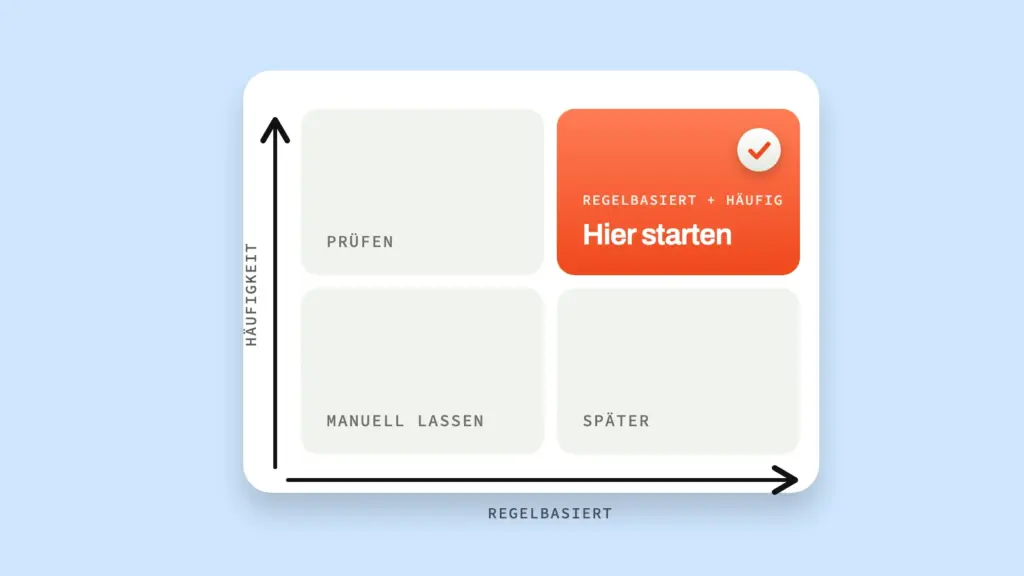
Automate processes first that meet three criteria at once: they repeat regularly, they follow fixed rules, and they occur often enough for the setup effort to pay off. A simple scoring matrix beats any gut feeling.
Before you even think about a tool, take stock. For two weeks, write down every recurring task that eats up time for you or your team. Typing up invoices, transferring leads from the contact form to the CRM, sending customers a confirmation email after a purchase, clicking together weekly reports – everything that feels like “I’m doing this for the hundredth time”.
Then rate each process against three questions. Is it repetitive – does it happen at least once a week? Is it rule-based – can you describe the decision logic in one sentence without saying “it depends”? And does it have enough volume – is the setup effort worth it given how often it occurs? Whatever scores well on all three comes first.
The most common mistake at this point: you automate the process that annoys you most right now instead of the one that brings the most. A process that takes ten minutes once a month isn’t a good start – even if it gets on your nerves every time. A process that costs twenty minutes every day and is strictly rule-based is.
A simple matrix for your own inventory could look like this:
| Process | Frequency | Time per run | Rule-based? | Priority |
|---|---|---|---|---|
| Transfer lead from contact form to CRM | daily | 5 min | Yes | High |
| File invoices from email attachments | several times a week | 8 min | Yes | High |
| Click together weekly report | weekly | 30 min | Partly | Medium |
| Individual quote creation | irregular | 45 min | No | Low |
Enter your own processes in a table like this, sort by priority – and start at the top. Anything with a clear no in the “Rule-based” column doesn’t belong in an automation workflow for now; it stays manual or waits for a later AI-supported solution. Before you get going, though, quickly check whether your top candidate really pays off – the next section shows how.
When does automation pay off financially – and when doesn’t it?
Automation pays off financially when the annual time saved – frequency times time per run – plus avoided error costs clearly exceeds the one-off effort of building the workflow. There’s a clear threshold below which the effort simply doesn’t add up.
A worked example makes this tangible – the numbers are chosen freely so you can transfer the method to your own case. Suppose a process occurs five times a week and takes ten minutes manually each time. That’s 50 minutes a week, so roughly 40 hours over a year. The setup effort is naturally only an estimate at this point – as a guideline, allow one to two hours for simple, well-documented workflows, sometimes five with more actions and error handling. If you assume five hours here, the effort pays for itself after a few weeks – the rest of the year is pure gain.
It’s a different story if a process only occurs once a month and takes five minutes. That’s just one hour a year. Even a simple workflow that takes two hours to set up doesn’t pay off purely on the numbers here – unless the process is particularly error-prone and the cost of errors is high, for example because a forgotten step annoys a customer or a deadline is missed.
That’s why, besides the pure time saved, the error-cost side counts too: how expensive is it when the process goes wrong manually? A forgotten follow-up with a new customer costs more than the ten minutes automation would have saved. For very complex or rare processes, it can also be cheaper to outsource the build rather than spend days learning a tool yourself that you then only need once a month. You’ll find a more detailed calculation aid with more scenarios in our article “When does automation pay off?”.
As a rough guide, again with freely chosen example figures:
| Frequency | Time per run | Time per year | Does automation pay off? |
|---|---|---|---|
| Daily | 10 min | approx. 40 hrs | Almost always yes |
| Weekly | 15 min | approx. 13 hrs | Usually yes, if setup is under 5 hrs |
| Monthly | 10 min | approx. 2 hrs | Only if error costs are very high |
| Rarely/irregularly | any | low | Usually not – unless errors would be particularly expensive |
Use this table as a starting point and enter your own real figures – it’s the method that counts, not the example values. Once the numbers work, it’s time to implement – and that doesn’t start with the tool, but with the process itself.
Why should you clarify the process before the tool?
Document and clean up your process before you even touch an automation tool. A messy process doesn’t get better through automation – it just goes wrong faster, and without anyone looking any more.
That’s not an opinion; it’s the experience from every project where a client wanted to start straight with the tool. The temptation is great: you’ve installed Zapier or n8n, want to get going, and the process “is obvious”. Usually it isn’t. Almost every process has exceptions that live in the head of the person who has done it manually so far – the special rule for existing customers, the different handling for enquiries from abroad, the intermediate step that is “basically always” done but isn’t written down anywhere.
So write the process down completely once before you automate. Every step, every condition, every exception. If you notice along the way that the process itself is unnecessarily complicated – too many approval loops, duplicate data entry, steps nobody can justify any more – clean that up first. A cleaned-up three-step process can be automated in an hour. An uncleaned seven-step process with hidden exceptions will cost you days – and in the end produce errors that are harder to find because nobody looks closely any more.
Zapier, n8n or Make – which tool suits your business?
The three most common automation tools differ mainly in three respects: pricing model, data protection situation and the technical know-how required. Zapier is the easiest to get started with, n8n offers the most control over your data, Make sits in between.
Zapier is the best-known solution: cloud-based, a huge selection of integrations, set up in a few minutes. The catch: it’s a US provider, and depending on the data category and data processing agreement, you need to look closely at where your data is processed. It also gets noticeably more expensive as volume grows, because billing is per executed task.
n8n is fair-code licensed – the source code is open, and you can host it yourself, for example on your own server in the EU. For internal use in your own business, the Community Edition is free. That gives you full control over the server location, which makes the GDPR assessment much simpler. The price: you need a little more technical understanding for the setup, and maintaining the server is up to you or your service provider.
Make (formerly Integromat) positions itself in between: a visual interface like Zapier, but often cheaper for more complex scenarios with many steps. The provider is based in Prague in the EEA – legally speaking, that means no transfer to a third country, even though the usual GDPR obligations still apply to you as a user. Still, check the server location and data processing before you start, not afterwards.
For orientation, a short comparison:
| Criterion | Zapier | Make | n8n |
|---|---|---|---|
| Hosting | Cloud (US provider) | Cloud (EU provider, check region) | Cloud or self-hosted |
| Getting started | Very easy | Easy to moderate | Moderate |
| Pricing model | Per executed task | Per operation, often cheaper at volume | Community Edition free (fair-code), server costs if self-hosted |
| GDPR control | Depends on the DPA | Depends on the DPA | Full control when self-hosted |
| Best for | Quick start, standard use cases | More complex scenarios with many steps | Full data control, technically skilled teams |
Which tool you choose depends on your technical know-how, your budget and your data protection requirements. Start with the tool that matches your current know-how – you can always switch later as your requirements grow. You’ll find a detailed comparison with concrete use cases in our separate article “Zapier or n8n?”.
How do you build your first workflow in practice?
Every workflow consists of the same four building blocks: a trigger that starts it, one or more actions it performs, filters that weed out unwanted cases, and error handling in case something goes wrong. It’s best learned with an end-to-end example.
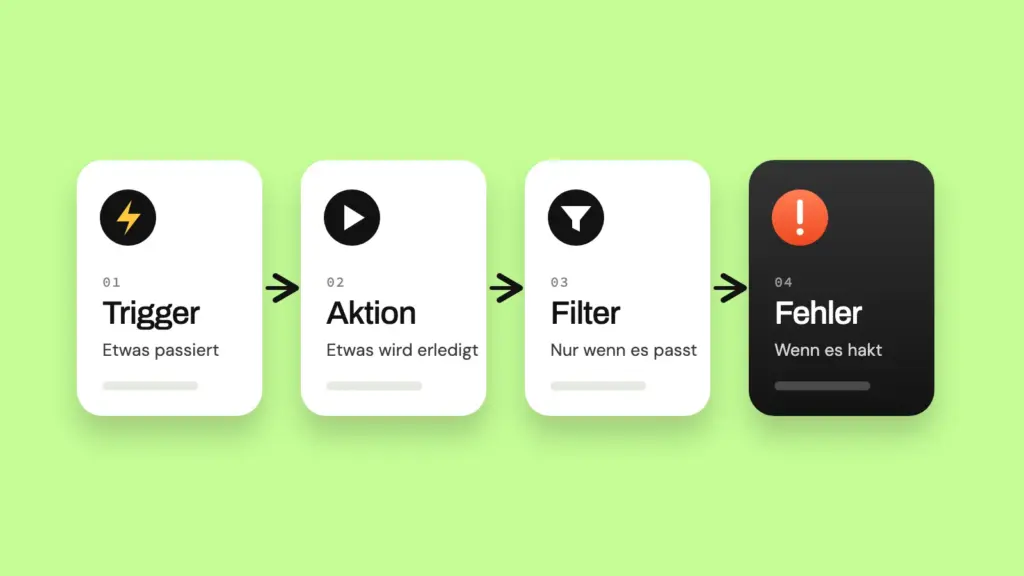
Take a classic case: someone fills in the contact form on your website. The trigger is the new form submission. The first action automatically creates the contact in your CRM – name, email, message, source. The second action sends an automatic confirmation to the sender so nobody is left in the dark. The third action notifies you or your team by email or chat message so the enquiry doesn’t get lost.
Now the filters come into play. You probably don’t want obvious spam to create an entry in your CRM. A simple filter therefore checks whether the email address has a valid format and whether certain spam patterns appear in the message field. If a submission fails the filter, it lands in a separate folder instead of the CRM – not deleted, just sorted out, so you can check if in doubt.
And then the error handling that’s missing from most guides: what happens if the CRM is unavailable right now? A good workflow automatically tries two or three more times and only sends you an error message if it still doesn’t work. Without this step, you might not notice for weeks that enquiries are going nowhere.
Before the workflow goes live, test it with real test data – not just once, but with several variants: a normal enquiry, one with missing information, one your spam filter should actually sort out. Only when all three cases do what they should do you switch it on.
How do you keep automated workflows running for the long term?
A workflow isn’t finished once it’s set up – it needs monitoring, a clear plan for when things go wrong and documentation that someone else can understand too. That’s exactly what’s missing from most guides on the topic, but it’s the difference between a workflow that runs for a year and one that silently stops after three months.
Set up a simple notification that tells you when a workflow fails – most tools offer this natively. Without it, you often only notice an outage when a customer complains that they never got a reply.
Also decide what happens when a workflow breaks: who looks into it, and how quickly? For a small business, a single rule is often enough: “Error messages go to this one person, who looks into it within 24 hours.” What matters is that this rule exists at all and isn’t only invented when something goes wrong.
And document every workflow so that someone else can understand it in five minutes: what triggers it, what it does, which tools are involved, who last changed it and when. A simple table or document is enough – the main thing is that it exists. Nothing is more expensive than having a workflow nobody understands any more because the person who built it has left the company.
Also plan a fixed routine for reviewing the workflow – for example once a quarter. If your process changes, the workflow must change with it. Use the opportunity to check whether the assumptions from your cost-benefit calculation still hold – if the workflow runs less often or differently than planned, it needs to be reviewed. Automation that is never reviewed becomes outdated just like any other software.
For documentation, a simple table with five columns is enough:
| Workflow | Trigger | Tools involved | Responsible | Last reviewed |
|---|---|---|---|---|
| Lead capture | Form submission | Website, CRM, email | You | Q3 2026 |
| Invoice filing | New email with attachment | Inbox, cloud storage | Accounting | Q3 2026 |
An overview like this costs you ten minutes per workflow – and saves you hours when someone eventually asks why an automation suddenly does something other than expected.
Where do classic workflows reach their limits – and what comes next?
Classic workflow automation reaches its limits where decisions are no longer clearly rule-based – that is, when a system no longer just executes simple if-then logic but would have to understand, classify or weigh up content. That’s exactly where AI agents come into play, but as an honest next step, not as a replacement for what you’ve just built.
A Zapier or n8n workflow is excellent at reliably executing fixed rules: if X happens, do Y. But it quickly becomes impractical as soon as you try to map every conceivable exception as a rule of its own. An email enquiry that needs to be understood and categorized appropriately, a customer message whose urgency needs to be assessed, a document from which relevant information has to be extracted freely – this is where classic if-then chains give up, because these tasks can no longer be squeezed neatly into fixed rules.

This is exactly where AI agents come in: they can read unstructured text, classify it and respond to it without you writing a separate rule for every conceivable case. The order matters: AI doesn’t replace people – it frees people from tasks that keep them from their actual work. And it certainly doesn’t replace the foundation you’ve built in this guide. An AI agent on top of a messy, unautomated process solves exactly the same problems as a Zapier workflow on top of a messy process – only more expensively and with less control.
When your classic workflows are running and you reach a point where rigid rules are no longer enough, that’s the right moment to look into AI agents – not before. Exactly where this boundary lies in practice and what AI agents can realistically do today is shown in detail in our bridge article “Where classic workflows reach their limits”.
Checklist: the seven steps at a glance
- Process inventory: collect all recurring tasks for two weeks and rate them by frequency, duration and how rule-based they are.
- Check the economics: weigh time saved and error costs against the estimated setup effort – before building, not afterwards.
- Clean up the process: uncover and simplify exceptions and unnecessary steps before a tool comes into play.
- Choose a tool: select Zapier, Make or n8n based on know-how, budget and data protection requirements.
- Build your first workflow: define trigger, actions, filters and error handling, and test with several test cases.
- Secure operation: set up error notifications, clarify responsibility, document the workflow and regularly re-check the cost-benefit assumptions.
- Recognize the limits: know when a process can no longer be solved with rules – and that this is the starting point for AI agents, not for yet another complicated workflow.
Frequently asked questions about introducing workflow automation
Do I need programming skills for workflow automation?
No. Zapier, Make and n8n are visual for standard setups – you connect building blocks by clicking instead of writing code. For highly individual logic, a basic technical understanding helps, but it isn’t necessary to get started.
How long does it take to introduce the first workflow?
For a simple, clearly defined process, one to two hours of pure setup time is often enough once the process itself is properly documented. Cleaning up the process beforehand usually takes more time than the actual automation.
What does workflow automation cost for a small business?
That depends heavily on the tool and volume. Cloud tools such as Zapier or Make usually start with low-cost or free entry tiers and get more expensive as volume grows. Self-hosted n8n mainly involves server rather than licence costs, but somewhat more setup effort.
Is n8n GDPR-compliant?
n8n itself is a tool, not an automatic GDPR guarantee. But because you can host it yourself – for example on an EU server – you have control over where your data is stored, which makes the data protection assessment much simpler. With cloud tools, you need to check this in the respective provider’s data processing agreement.
Conclusion
Introducing workflow automation isn’t a tool problem but an order problem: first find the right process, then clean it up, then automate it, then run it for the long term. If you stick to this order, you build workflows that still run reliably a year later – and you also notice early enough when classic automation reaches its limits and an AI agent is the next sensible step. Start with a single, clearly defined process. Need a sparring partner to get started? Drop me a line and we’ll go through your first process together.